
Try our AI agents
63digital.com works for AI assistants as well as people. Watch a demo agent shop and pay with test money, see two agents work together, connect your own assistant, and try the tools built into each page. No coding needed.
Most of what we've built for AI agents is invisible in a normal browser. This guide shows you how to see it working, from simply opening a page to connecting your own assistant. Everything here is free, and the demo payments use test money.
Watch an agent shop for you
Open agent.63digital.com. The chat on the left is your agent: an AI assistant acting for you. The panel on the right is the trace, which shows every request it makes to other websites, as it makes them.
- Click Discover the sandbox shop. The agent reads the shop's public description files and lists what it can do there, without being told where to look.
- Click Buy a coffee with UCP. The agent opens a checkout, gets a one-off payment token from Stripe, pays, and comes back with an order reference you can open.
- Click any entry in the trace to see the request and the reply in full.
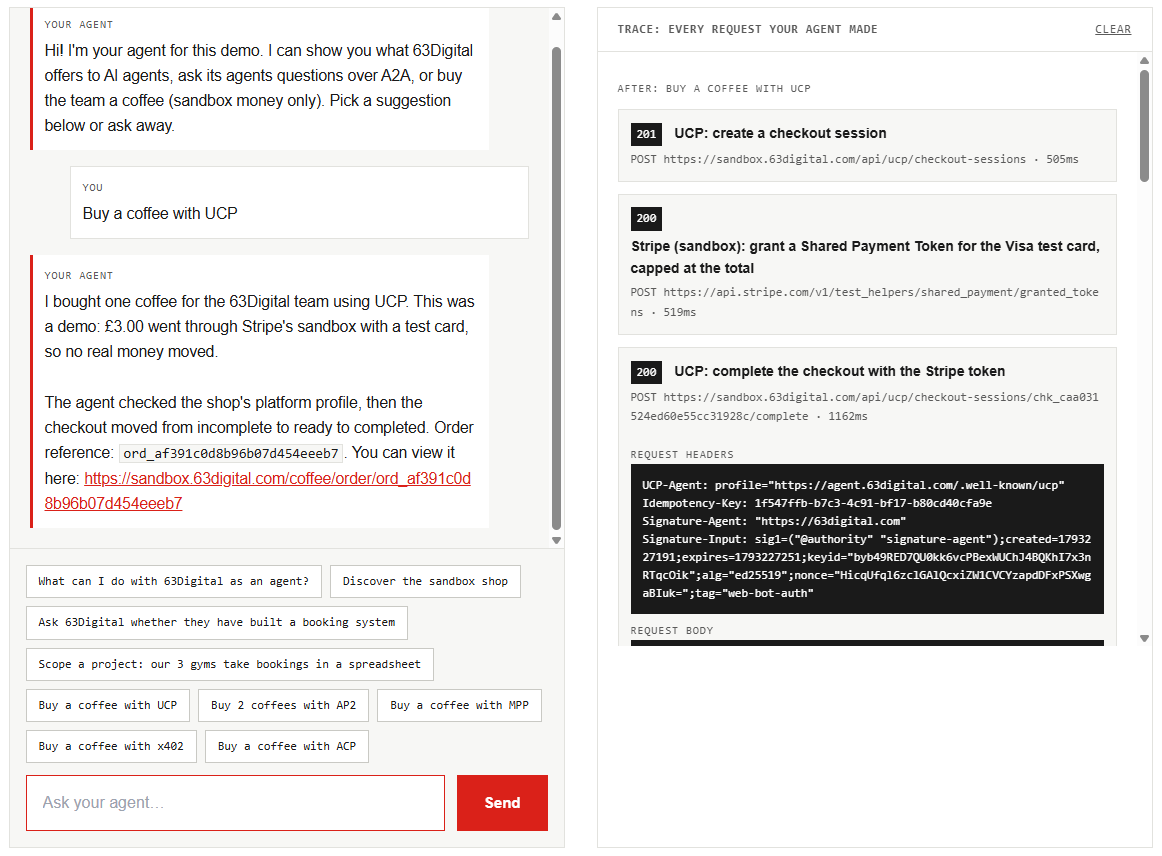
The shop it buys from, sandbox.63digital.com, is a copy of ours running on Stripe's test system, so no real money moves. Try the other payment buttons too. Each is a different open standard for agent payments (MPP, AP2, x402 and ACP), and the trace shows how they differ. ACP checks who you are first: give the agent your email, open the sign-in link we send, and enter the code the agent shows you. You can also type your own requests, such as “buy three coffees with AP2” or “ask 63Digital whether they've built a booking system”.
Watch two agents work together
In the same chat, click Scope a project: our 3 gyms take bookings in a spreadsheet, or describe a project of your own. Your agent passes the brief to a second agent, 63Digital Project Scoping, which drafts the features, phases and open questions. Your agent then summarises what comes back.
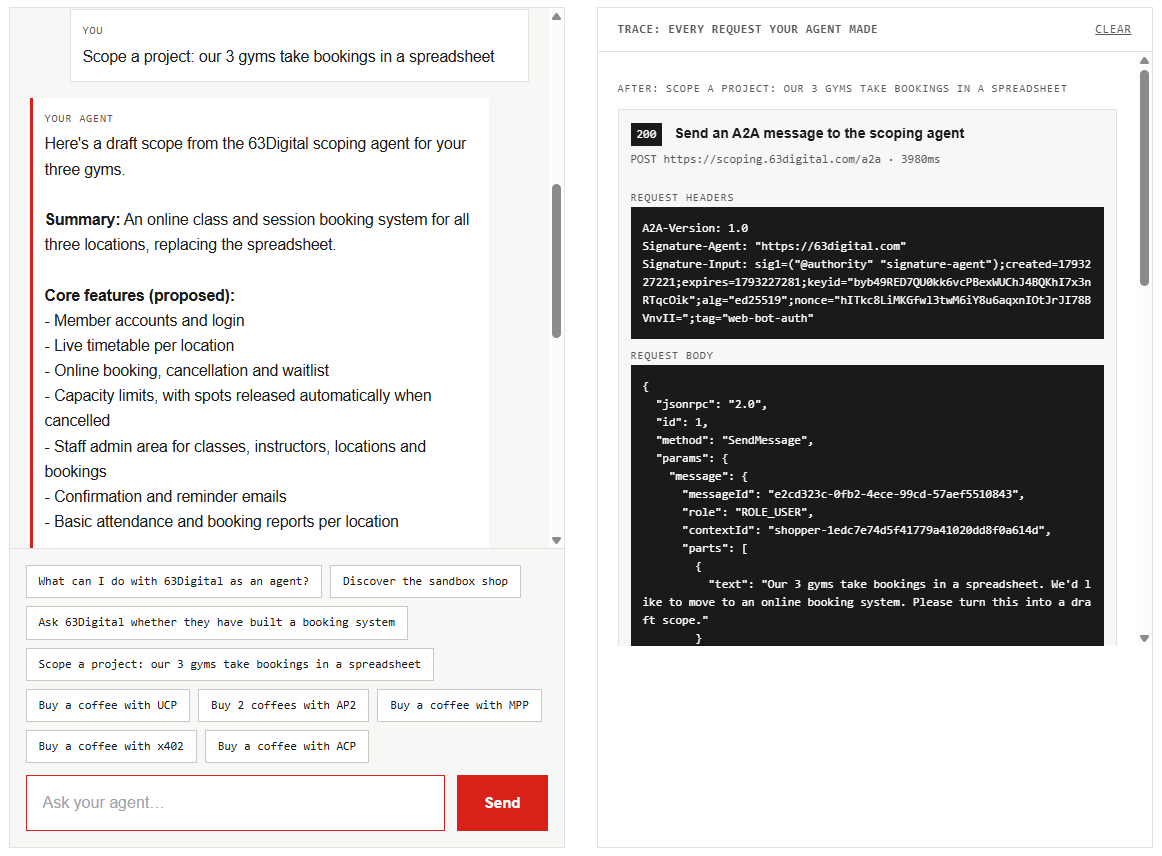
Look at the request headers in the trace. Every request our agents send is signed with a key we publish, using a standard called Web Bot Auth, so the scoping agent can check it really came from us. Its response headers mark the caller as verified. This is how websites will tell trusted agents apart from scrapers.
Connect your own AI assistant
Our MCP server lets assistants such as Claude and ChatGPT look things up on our site directly, instead of guessing from search results. The address is https://63digital.com/mcp, and it needs no account or key.
- Claude (web or desktop app): open Settings, then Connectors, choose Add custom connector, name it 63Digital and paste the address.
- ChatGPT: custom connectors need Developer mode, under Settings, Apps & Connectors, Advanced settings. Then create a connector with the address above.
- Other apps, such as Cursor or VS Code: add it as a remote MCP server.
Menu names change as these apps update, so look for “custom connector” or “MCP server” if the wording differs. Then ask things like:
- “What does 63Digital do with WooCommerce?”
- “Find me a 63Digital case study about replacing spreadsheets.”
- “Summarise 63Digital's latest updates.”
Your assistant calls our tools and answers from the pages themselves, with links to them.
Send us an enquiry through your assistant
With the connector added, ask your assistant to get in touch, for example: “Send 63Digital an enquiry about moving our bookings online.” Anyone can read our site, but sending us a message needs your say-so:
- Your assistant asks for your email address.
- We email you a sign-in link.
- Open it and enter the six-digit code your assistant shows you.
Your assistant can then send the enquiry, and our reply goes to the address you confirmed. Nothing is sent in your name without that step.
Try the tools in your browser: WebMCP
WebMCP is a new browser feature that lets a page offer tools directly to an AI in the browser. Every page on 63digital.com offers five: search the site, read a page as Markdown, open a page, fill in our contact form, and give our contact details. It's an early preview in Chrome, so for now it takes a few steps:
- Use an up-to-date Chrome. The inspector below needs version 150 or later; check under Settings, About Chrome.
- Go to chrome://flags, search for WebMCP for testing, enable it and relaunch Chrome.
- Install Model Context Tool Inspector from the Chrome Web Store. It's a developer tool from the Chrome team.
- Open any page on 63digital.com and click the extension's icon. A side panel lists our five tools.
- Choose search_site, type {"query": "WooCommerce"} in the box and click Execute Tool. Matching pages come back with links.
Try draft_enquiry as well: it opens our contact page with the form filled in, but it never presses Send. That's always left to you. The inspector can also pass the tools to Gemini so you can ask in plain English. As it's a developer tool, turn it off when you're done.
Buy us a real coffee
Everything above uses test money. To try the real thing, the coffee page takes £3 through a normal Stripe checkout. Assistants that can pay with a Stripe payment token can buy the same coffee for you over MPP or ACP, though few everyday assistants offer that yet.
What this means for your business
None of this needed a new website. It's a layer on top of our existing Umbraco site and Stripe account: clean Markdown for every page, honest description files, a small MCP server over real content, and payments through the account we already had. If you'd like AI assistants to find, understand and buy from your business, read how to let AI agents pay your business with Stripe, see the technical detail on For AI agents, or book a discovery call.